Video Compressor · Guide
Does Compressing a Video Reduce Quality? What You Lose, and When You See It
Technically, yes — every compression throws data away. Whether you can see it depends on the bitrate, the resolution, the codec and the screen. Here's how each one works and how far an iPhone video can usually shrink before it shows.
On this page8 sections
Quick answer
Yes, compression always removes some data — iPhone videos are already compressed when you record them. But iPhone recordings carry far more bitrate than a phone screen needs: a 4K clip re-encoded to 1080p at a streaming-level bitrate is typically 4–5 times smaller and looks the same on a phone. Loss becomes visible when the bitrate gets too low for the resolution and the amount of motion.
- Bitrate matters most: too few Mbps for the resolution gives blocks and smearing.
- HEVC keeps the same look as H.264 at a lower bitrate.
- Compress once, from the original — every re-compression adds loss.
What decides the quality
Every iPhone video is already compressed — the camera encodes it as HEVC or H.264 while you record. «Compressing» it again means re-encoding with less data. Four settings decide what that costs:
| Setting | What it is | Effect on quality |
|---|---|---|
| Bitrate | Data per second (Mbps) | The big one: too low → blocks, smearing |
| Resolution | 4K, 1080p, 720p… | Fewer pixels → less fine detail |
| Codec | H.264 or HEVC (H.265) | HEVC needs fewer Mbps for the same look |
| Frame rate | 24, 30, 60 fps | 60 → 30 fps halves the frames, motion less smooth |
Size is roughly bitrate × length, so a smaller file always means fewer bits per second. The question is whether those bits were doing anything you can see. In an iPhone recording, often they weren’t: the camera records at a generous bitrate so the original holds up to editing and big screens.
When the loss becomes visible
Lower bitrates don’t fail evenly. The same setting can look perfect on one clip and rough on another. Loss shows first in:
- Fast motion — sports, a moving camera, confetti, water. Every frame changes, so every frame needs more data.
- Fine detail and noise — grass, gravel, crowds, low-light grain. Too few bits and it turns to mush.
- Smooth gradients — skies and walls can show visible steps (banding).
- Small text — screen recordings and slides blur before faces do.
- Big screens — a copy that looks perfect on a phone can look soft on a TV or a monitor up close.
- Re-compression — each new encode loses a little more. A video that went through a messenger and then a compressor has been compressed three times.
How to compress without visible loss
These rules come straight from the numbers in the table below.
Step 1: Start from the original
Compress the video in your Photos library, not a copy you downloaded from a chat. Every extra generation adds loss.
Step 2: Match the resolution to the screen
For phones and messages, 1080p is plenty, and 720p is usually fine. Keep 4K only for a big TV or for editing later.
Step 3: Keep the bitrate sensible for that resolution
Apple's own streaming ladder uses about 4.5–5.8 Mbps for 1080p HEVC and 2.4–3.4 Mbps for 720p HEVC; H.264 needs roughly a third more. Go far below and fast scenes start to break up.
Step 4: Prefer HEVC when the other side can play it
Same look at a lower bitrate. For older devices or some websites, H.264 is the safer choice.
Step 5: Keep the original until you've checked
Look at the copy on the screen it will be watched on — ideally a fast scene — before you delete anything.
Check it with Video Compressor
Video Compressor shows what you’d lose before you keep anything: the expected size first, then a side-by-side comparison with the original.
Step 1: See why it shrinks
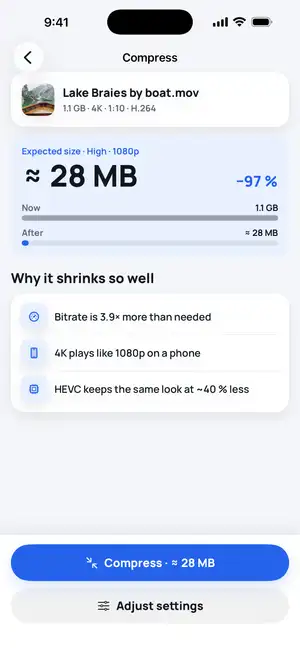
Pick a video and the app shows the expected size and the reasons — for example extra bitrate, or 4K on a phone screen. Here 1.1 GB of 4K becomes about 28 MB.
Fig. 1 — Size and reasons first
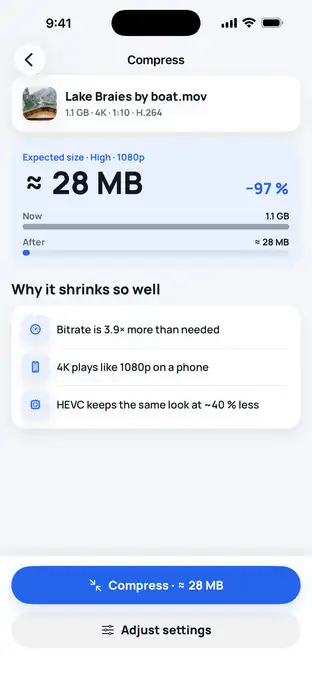
Fig. 1 — Size and reasons first
Step 2: Compare, zoomed in
After compressing, open Compare: drag the slider between the original and the copy, pinch to zoom to 1:1, or switch to Play to watch both. Save the copy only if you're happy with it.
Fig. 2 — Original vs compressed, 1:1
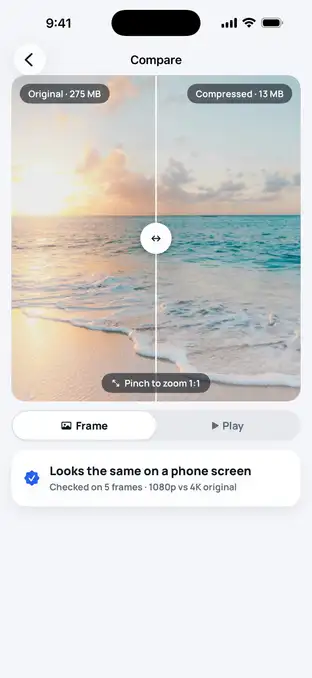
Fig. 2 — Original vs compressed, 1:1
Typical numbers
These are typical values, not a visual test: the bitrates Apple recommends for streaming video to its own devices, turned into MB per minute (Mbps × 7.5), next to what an iPhone records. Apple uses this ladder for video it considers fit to watch — so it’s a fair floor for «looks fine».
| Video only, per minute | Size | Compared with the 4K original |
|---|---|---|
| iPhone recording · 4K 30 fps | ≈ 170 MB | The original |
| iPhone recording · 1080p 30 fps | ≈ 60 MB | About 3× smaller |
| 4K · HEVC streaming | ≈ 87–126 MB | Still 4K, 25–50 % smaller |
| 1080p · H.264 streaming | ≈ 45–59 MB | About 3–4× smaller |
| 1080p · HEVC streaming | ≈ 34–44 MB | About 4–5× smaller — looks the same on a phone |
| 720p · HEVC streaming | ≈ 18–26 MB | About 6–9× smaller — fine for messages |
Read the other way: a 1080p iPhone recording (≈ 60 MB a minute) can usually lose about 25–45 % of its size at 1080p, and much more if you go to 720p. Stereo AAC audio adds about 1 MB a minute at 128 kbps.
Sources: Apple — HLS Authoring Specification for Apple Devices (bitrate ladder, AAC audio 32–160 kbps); Apple — Using HEIF or HEVC media on Apple devices; YouTube Help — recommended upload encoding settings (upload bitrates, e.g. 8 Mbps for 1080p and 35–45 Mbps for 4K at 30 fps, for comparison); iPhone per-minute estimates reproduced by Gadget Hacks.
Ready to shrink one? See how to reduce video file size on iPhone or how to compress a video for WhatsApp.
Troubleshooting
Blocky in fast scenes?
The bitrate is too low for the motion. Use a bigger target size, a lower resolution at the same size, or trim the clip so each second gets more data.
Colors look duller?
An HDR original turned into a standard (SDR) copy can look less bright on an HDR screen. That's the color format, not the bitrate.
Old copy looks worse each time?
That's generation loss. Go back to the original in Photos and compress it once, to the size you need.
«Already compact»?
The video is already efficient — a copy wouldn't save enough to be worth the loss, so Video Compressor keeps the original.
FAQ
Is there such a thing as lossless video compression?
Lossless video codecs exist, but they make huge files. Everything you share — iPhone recordings, YouTube, Netflix, WhatsApp — uses lossy codecs like H.264 or HEVC. «Visually lossless» means the difference is there in the data but you can't see it at normal viewing.
Does converting 4K to 1080p lose quality?
It removes detail, but a 6-inch phone screen can't show most of it anyway. On a large 4K TV, up close, the 4K original will look sharper.
Is HEVC better than H.264?
For file size, yes — Apple says HEVC compresses better than H.264 while preserving the same visual quality. H.264 plays on more old devices and websites, so it's the safer choice for sharing with people outside the Apple world.
Why do videos look worse after I send them?
Many messengers re-compress videos on send, often to a lower resolution and bitrate. Sending an already-compressed copy that fits their limit, or sending a link, gives you more control.