Video Compressor · Guide
How to Reduce Video File Size on iPhone: 4 Ways Compared
A minute of 4K from an iPhone is about 170 MB. Here are four ways to make videos smaller — two built into iOS, one free export trick and one app — and what each one does to the file size.
On this page9 sections
Quick answer
For new videos, record in 1080p HD with Settings → Camera → Formats set to High Efficiency — about a third of the size of 4K. For a video you already have, trim it in Photos, export it at a lower resolution with iMovie, or compress it with an app like Video Compressor, which shows the expected size first.
- New videos: 1080p HD at 30 fps + High Efficiency ≈ 60 MB a minute instead of ≈ 170 MB in 4K.
- Existing videos: trim in Photos, or export at 720p in iMovie.
- Exact size: Video Compressor aims just under a target, like WhatsApp's 16 MB.
What makes a video file big
A video’s size is its bitrate — how much data each second carries — multiplied by its length. Resolution, frame rate and the codec decide the bitrate the iPhone records at. Apple lists the result for each setting in Settings → Camera → Record Video; roughly:
| Recording setting | About 1 minute | Good to know |
|---|---|---|
| 720p HD · 30 fps | ≈ 40 MB | Fine for messages |
| 1080p HD · 30 fps | ≈ 60 MB | Sharp on any phone screen |
| 4K · 30 fps | ≈ 170 MB | Almost three times 1080p |
| 4K · 60 fps | ≈ 400 MB | A 3-minute clip is over 1 GB |
So there are only three levers: record with a lower bitrate, keep fewer seconds, or re-encode the video you have. Each way below pulls one of them.
Way 1 — Record smaller: camera settings
This doesn’t shrink videos you already have, but every new minute takes far less space.
Step 1: Use High Efficiency
Settings → Camera → Formats → High Efficiency. Videos are saved as HEVC, which Apple says compresses better than H.264 while keeping the same visual quality. Most Compatible (H.264) makes bigger files.
Step 2: Pick a lower resolution and frame rate
Settings → Camera → Record Video → 1080p HD at 30 fps. Apple notes that faster frame rates and higher resolutions result in larger files — 4K at 60 fps is several times the size of 1080p at 30 fps.
Step 3: Switch per video in the Camera app
In Video mode, tap the resolution and frame rate shown at the top of the screen to change them for the next clip — handy if you want 4K only for special moments.
Way 2 — Trim it in Photos
Size follows length, so cutting a clip to the part that matters is the quickest free fix.
Step 1: Open the video and tap Edit
In Photos, open the video and tap the Edit button.
Step 2: Drag the ends of the frame viewer
Drag either end of the strip below the video to set the new start and end, then tap Done.
Step 3: Save it as a new clip
Tap Save Video as New Clip to get a separate, shorter file. Save Video also works for sharing, but Photos keeps the original so you can revert — it doesn't free storage.
Way 3 — Export at a lower resolution
Apple’s free iMovie app can re-export a video at a smaller resolution. Apple suggests exactly this when a video is too large to send.
Step 1: Make a quick project
In iMovie, start a new movie and add the video from your library. You don't need to edit anything.
Step 2: Share → Options → lower resolution
Tap Done, then the Share button. Tap Options and choose a lower resolution — Apple notes that 720p HD produces smaller files that upload faster.
Step 3: Save the smaller copy
Tap Save Video to put it in Photos, or Save to Files. Your original stays untouched.
Way 4 — Video Compressor: see the size first
Video Compressor re-encodes the video on your iPhone and tells you the result before it starts. Nothing is uploaded, and the original stays in Photos.
Step 1: Pick a video
Your newest videos come first, each with the size it will shrink to. Or sort by Biggest to start with the ones that take the most space.
Fig. 1 — Every video shows its expected size

Fig. 1 — Every video shows its expected size
Step 2: Check the forecast
Before anything happens, the app shows the expected size and why the file shrinks — extra bitrate, 4K on a phone screen. Here 1.1 GB becomes about 28 MB.
Fig. 2 — Expected size before you start
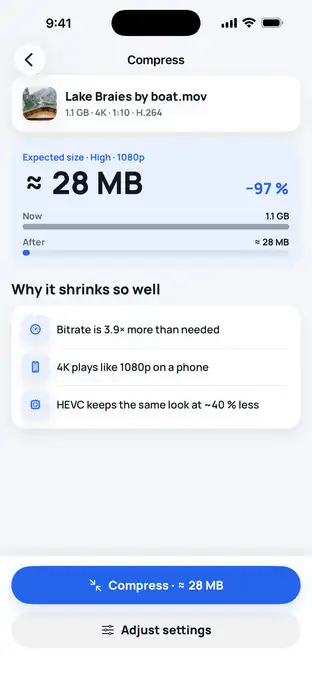
Fig. 2 — Expected size before you start
Step 3: Choose quality or a target size
Keep a quality level, or tap Send to and pick WhatsApp (16 MB) or Email (25 MB) — the app aims just under that size. Then compress and save the copy to Photos with the original date.
Fig. 3 — 275 MB → 13 MB
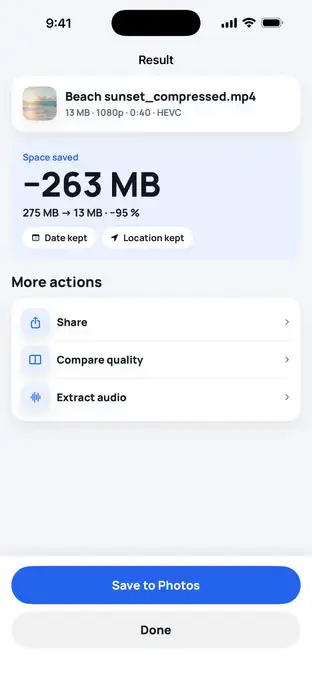
Fig. 3 — 275 MB → 13 MB
Typical numbers
These are typical values, not a test on one phone: where a one-minute 4K 30 fps clip (≈ 170 MB by the iPhone’s own estimate) ends up with each way.
| One-minute 4K 30 fps clip | Size | What you give up |
|---|---|---|
| Original | ≈ 170 MB | — |
| Way 1 · recorded in 1080p HD 30 fps | ≈ 60 MB | Only for new videos |
| Way 2 · trimmed to 20 s | ≈ 57 MB | Two thirds of the clip |
| Way 3 · iMovie at 720p | Varies | Apple doesn't publish the export bitrate — check after |
| Way 4 · 720p at a streaming bitrate | ≈ 23–34 MB | About 5–7× smaller, whole clip kept |
| Way 4 · Send to WhatsApp | ≤ 16 MB | Over 10× smaller — fine on a phone, softer on a TV |
Sources: per-minute sizes as listed under Settings → Camera → Record Video, reproduced by Gadget Hacks; Apple — Record a video with your iPhone camera; Apple — Using HEIF or HEVC media; Apple — Trim video length on iPhone; Apple — Share or export your iMovie video; 720p H.264 bitrates (3–4.5 Mbps) from Apple’s HLS Authoring Specification.
How much quality does each step cost? See does compressing a video reduce quality? To win back space rather than send a file, see how to free up iPhone storage without deleting videos.
Troubleshooting
Storage didn't go down?
A trimmed or compressed copy is a new file. Delete the original, then empty Photos → Recently Deleted — deleted items stay there for 30 days.
Copy is barely smaller?
Short, already-compressed clips (screen recordings, videos saved from messengers) don't have much to lose. Lower the resolution, or trim instead.
Video takes long to open?
With Optimize iPhone Storage on, the full video downloads from iCloud first. Stay on Wi-Fi until it's on the iPhone.
FAQ
What's the easiest way to make a video smaller on iPhone?
For a video you already shot, trimming it in Photos is the quickest free option — half the length is roughly half the size. To keep the whole clip, re-encode it at a lower resolution or bitrate, with iMovie's export options or a compressor app.
Does High Efficiency make videos smaller?
Yes. Apple says HEVC (High Efficiency) compresses better than H.264 (Most Compatible) while keeping the same visual quality. It only applies to new recordings; set it in Settings → Camera → Formats.
Does trimming a video in Photos free up space?
Not with Save Video — Photos keeps the original so you can revert. Save Video as New Clip makes a separate, shorter file; delete the long one afterwards to win the space back.
Will a smaller video look worse?
Less data always means some detail is lost, but on a phone screen a well-compressed 1080p or 720p copy usually looks the same as the 4K original. See our guide on whether compressing a video reduces quality.