Video Compressor · Guide
How to Free Up iPhone Storage Without Deleting Your Videos (2026)
Videos are usually what fills an iPhone. Here's how to see which ones take the space, the free ways to win it back, and how to shrink them so you keep every clip.
On this page7 sections
Quick answer
Open Settings → General → iPhone Storage to see how much Photos takes. Then either move originals to iCloud with Optimize iPhone Storage, or compress the biggest videos so a 1 GB clip becomes tens of MB. Empty Recently Deleted afterwards — that's when the space comes back.
- Check first: Settings → General → iPhone Storage.
- Free fix: iCloud's Optimize iPhone Storage, or record new videos in 1080p.
- Keep every video: compress the biggest ones, then empty Recently Deleted.
Why videos fill your iPhone
Photos and messages are small. Videos are not: an iPhone films in high resolution and at a high bitrate, so a few minutes of a holiday, a concert or a school play can take more space than thousands of photos. You can see it in Settings → General → iPhone Storage — Photos is usually the biggest bar, and videos are most of it.
How much a minute takes depends on the recording setting. The iPhone lists the numbers itself in Settings → Camera → Record Video; roughly:
| Recording setting | About 1 minute | Good to know |
|---|---|---|
| 720p HD · 30 fps | ≈ 40 MB | Fine for messages, soft on a TV |
| 1080p HD · 30 fps | ≈ 60 MB | Sharp on any phone screen |
| 1080p HD · 60 fps | ≈ 90 MB | Smoother motion |
| 4K · 30 fps | ≈ 170 MB | Almost three times the 1080p size |
| 4K · 60 fps | ≈ 400 MB | A 3-minute clip is over 1 GB |
Two more things make it worse. The Photos app can’t sort videos by file size, so the 2 GB clip hides among 30-second ones. And deleting doesn’t free space straight away: deleted items sit in Recently Deleted for 30 days before they’re gone.
Method 1 — Free: iPhone settings and iCloud
No app needed. These steps don’t touch the videos you want to keep.
Step 1: See what takes the space
Open Settings → General → iPhone Storage. Wait for the bar to load, then look at Photos. If it's several GB, videos are the place to start.
Step 2: Turn on Optimize iPhone Storage
If you use iCloud Photos: Settings → [your name] → iCloud → Photos, turn on Sync this iPhone, then make sure Optimize iPhone Storage is on (in iOS 27 it sits under iPhone Storage on that screen). Full-resolution originals stay in iCloud and the iPhone keeps space-saving copies. You need enough iCloud storage for your whole library — the free plan is 5 GB.
Step 3: Record new videos smaller
Settings → Camera → Record Video → 1080p HD at 30 fps, and Settings → Camera → Formats → High Efficiency. It won't shrink old videos, but every new minute takes about a third of 4K.
Step 4: Empty Recently Deleted
In Photos tap Collections → Recently Deleted (under Utilities) → View Album and unlock with Face ID or your passcode. Tap Select, then the ⋯ button → Delete All, and confirm. Only do this when you're sure — after that, the items can't be recovered.
Method 2 — Video Compressor: shrink the biggest videos
If you want to keep every video on the iPhone itself, make the files smaller. Video Compressor re-encodes them on your iPhone — nothing is uploaded — and saves the smaller copy with the original date and location.
Step 1: See your videos, biggest first
Open Video Compressor and allow access to Photos. Your videos are listed by size, and each one shows what it will shrink to — here 1.1 GB → 28 MB. Filters show only 4K, old or large videos.
Fig. 1 — Your videos, biggest first

Fig. 1 — Your videos, biggest first
Step 2: Select the ones worth shrinking
Tap Select on the «Select top» card, or pick videos one by one. The panel shows the total before and after — here four videos, 2.5 GB → ≈ 122 MB, freeing ≈ 2.4 GB.
Fig. 2 — Four videos, ≈ 2.4 GB to free

Fig. 2 — Four videos, ≈ 2.4 GB to free
Step 3: Compress and check the result
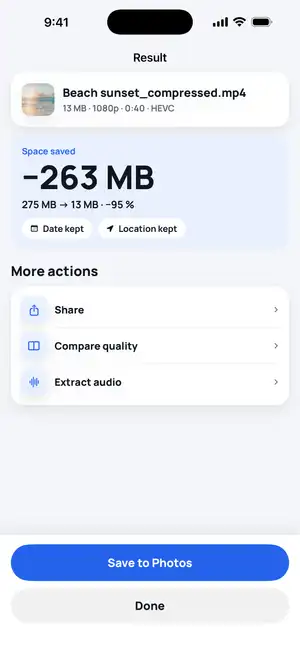
Tap Compress. The copies are saved to a «Compressed» album with the original date and location. Here a 275 MB video became 13 MB.
Fig. 3 — 275 MB → 13 MB
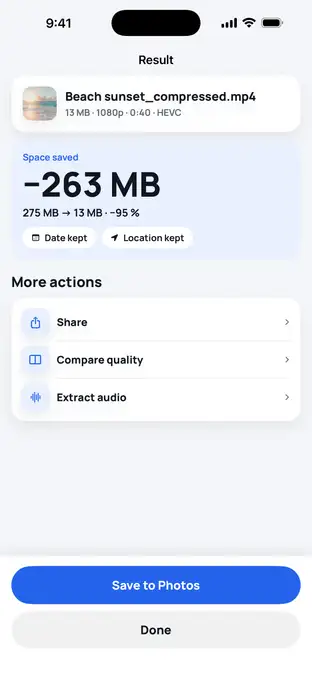
Fig. 3 — 275 MB → 13 MB
Step 4: Compare, then delete the originals
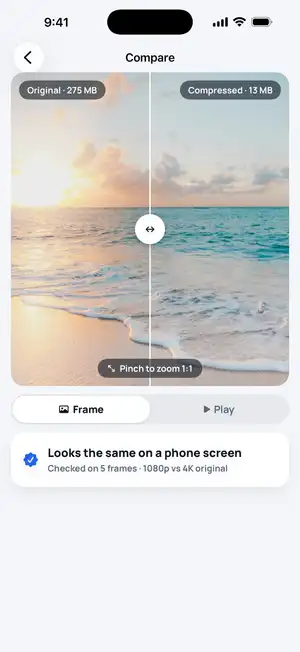
Drag the Compare slider to check the copy. Happy with it? Delete the originals — the iPhone asks you to confirm, and they move to Recently Deleted for 30 days. Empty it to get the space back now.
Fig. 4 — Compare before you delete
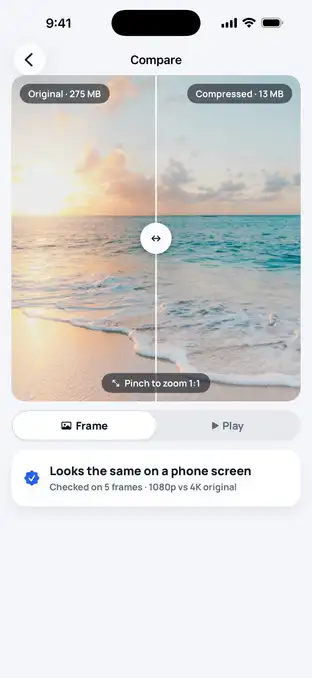
Fig. 4 — Compare before you delete
Typical numbers
These are typical values, not a measurement on one phone: what ten minutes of video takes at each setting, and when the space really comes back. The sizes are the iPhone’s own per-minute estimates multiplied by ten; real files vary with the scene and the iPhone model.
| Ten minutes of video | Space | What it means |
|---|---|---|
| 4K · 60 fps | ≈ 4 GB | ≈ 400 MB a minute |
| 4K · 30 fps | ≈ 1.7 GB | ≈ 170 MB a minute |
| 1080p HD · 30 fps | ≈ 600 MB | About a third of 4K 30 fps |
| 720p HD · 30 fps | ≈ 400 MB | A tenth of 4K 60 fps — the free version compresses up to 720p |
| Deleted, not emptied | 0 GB freed | Kept in Recently Deleted for 30 days |
Sources: Apple — Change video recording settings on iPhone (where the estimates live); the estimates themselves as listed under Settings → Camera → Record Video, reproduced by Gadget Hacks; Apple — Delete or hide photos and videos on iPhone (30 days); Apple — Manage your photo and video storage.
Want to send a video rather than store it? See how to send a large video from iPhone or how to compress a video for WhatsApp.
Troubleshooting
Space didn't go up?
The originals are in Recently Deleted for 30 days. Empty it in Photos → Recently Deleted. iPhone Storage can also take a few minutes to recalculate.
A video takes long to start?
With Optimize iPhone Storage on, the full video downloads from iCloud first. Stay on Wi-Fi — compression starts once it's on the iPhone.
Can't see all your videos?
With limited Photos access the app sees only the videos you picked. Change it in Settings → Privacy & Security → Photos → Video Compressor → Full Access.
«Already compact»?
That video is already efficient, so a copy wouldn't save much. The app keeps your original and skips it.
FAQ
Does compressing a video delete the original?
No. Video Compressor saves a smaller copy and leaves the original in Photos. You only delete originals if you choose to, through the iPhone's own confirmation — and they then stay in Recently Deleted for 30 days.
Why didn't my storage go down after I deleted videos?
Deleted photos and videos go to Recently Deleted and still take space for 30 days. Open Photos → Recently Deleted and delete them there to get the space back right away.
Will compressed videos look worse?
On a phone screen they usually look the same. A 4K original carries detail a 6-inch display can't show; a lower bitrate removes most of the file size, not what you see. Use Compare in the app to check before you delete anything.
Is Optimize iPhone Storage the same as compressing?
No. Optimize keeps full-size originals in iCloud and a smaller preview on the iPhone, so it needs enough iCloud storage for your whole library. Compressing makes the video file itself smaller, on the iPhone, without a subscription.