Tono · Guide
How to Make a Ringtone on iPhone from Any Song or Video (No Computer)
You can turn any song file or video on your iPhone into a ringtone without a computer. Here's the free way with GarageBand, the easier way with Tono, and the one step iOS makes everyone do by hand.
On this page7 sections
Quick answer
Get the part you want as a clip of 30 seconds or less, then hand it to iOS: with Apple's free GarageBand app (Share → Ringtone), or — on iOS 26 or later, for an MP3 or M4A — Files → Share → Use as Ringtone. Then pick it in Settings → Sounds & Haptics → Ringtone. No third-party app can set your ringtone for you.
- Free: GarageBand can cut a song file and export it as a ringtone.
- Easier: Tono picks the best 30 seconds of any song or video for you.
- Protected Apple Music songs can't become ringtones.
What you need to know first
An iPhone ringtone is a short audio file (M4R) in the Tones list. Getting a song there has a few rules that every method follows:
| Rule | Limit | Good to know |
|---|---|---|
| Length | ≤ 30 s | GarageBand offers to shorten longer clips |
| Song source | Files you own | Protected Apple Music songs are dimmed |
| Video sound | Needs extracting | GarageBand imports audio files only |
| Setting it | You, in iOS | No third-party app can set it for you |
The last rule is the one that confuses people: apps that promise to «set your ringtone» can only make the file. The hand-over always goes through iOS itself — GarageBand’s Share → Ringtone, or on iOS 26 and later, Use as Ringtone in the Files share sheet — and then Settings.
Method 1 — Free: GarageBand
GarageBand is Apple’s free music app. It can import a song file from the Files app, cut it and export it straight to your ringtones.
Step 1: Start a project
Install GarageBand from the App Store if you don't have it. On the Home Screen, touch and hold the GarageBand icon and tap Create New Audio Recording. When it opens, tap the Tracks button at the top.
Step 2: Import the song
Tap the instrument icon on the left to select the track, then tap the Loops Browser button → Files → «Browse items from the Files app», and pick your song. Touch and hold it, then drag it all the way to the left in the Tracks view.
Step 3: Cut it to 30 seconds
Tap the clip and drag its left or right edge until only the part you want is left — 30 seconds or less. Touch and hold an edge to zoom in. Then drag the clip all the way to the left so there's no silence before it.
Step 4: Export as a ringtone
Tap the Navigation button → My Songs. Tap More → Select, choose the song, then tap Share → Ringtone. Name it and tap Export. When it's done, tap «Use sound as» → Standard Ringtone.
Method 2 — Tono: any song or video
Tono makes the ringtone file for you — from a song in Files or the sound of a video in Photos — and walks you through the hand-over. Everything runs on your iPhone; nothing is uploaded.
Step 1: Tap Make ringtone
Open Tono and tap Make ringtone, then pick a song from Files or a video from Photos.
Fig. 1 — Home: Make ringtone
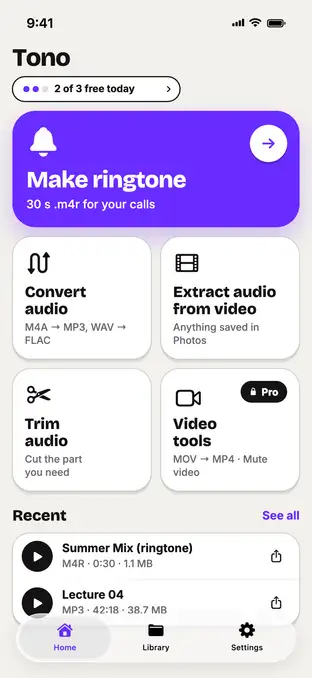
Fig. 1 — Home: Make ringtone
Step 2: Check the best part
Tono places a 30-second window on the loudest part of the track. Drag it, nudge the start and end by 0.1 s, and play the selection on a loop until it sounds right. Name it and tap Save ringtone.
Fig. 2 — 30 seconds on the best part
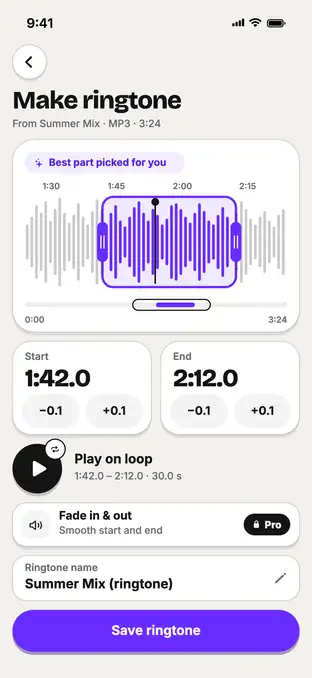
Fig. 2 — 30 seconds on the best part
Step 3: Save it to Files
The ringtone is ready as an M4R — here 0:30 and 1.1 MB. Tap Set as ringtone: Tono shows the three steps and starts with Save to Files.
Fig. 3 — Ringtone ready · M4R · 0:30
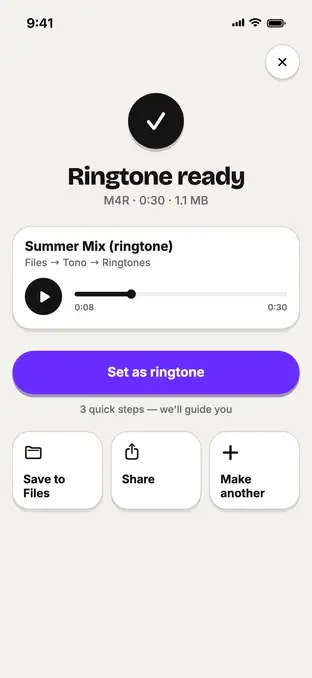
Fig. 3 — Ringtone ready · M4R · 0:30
Step 4: Share it as a ringtone from GarageBand
Tap Open GarageBand in Tono's guide. Import the ringtone the same way as in Method 1 — Loops Browser → Files → «Browse items from the Files app» → Tono → Ringtones — drag it to the start, then My Songs → Share → Ringtone → Export. It's already 30 seconds, so there's nothing to trim.
Step 5: Pick it in Settings
Tap «Use sound as» → Standard Ringtone in GarageBand, or open Settings → Sounds & Haptics → Ringtone and pick it from the list.
Typical numbers
These are typical values, not a timed test: the number of steps each path takes, counted from Apple’s own instructions and Tono’s in-app guide (one step = one screen or action, like «drag the clip to the start»). Fewer steps isn’t the whole story: in GarageBand, two of them are trimming by hand on a small waveform.
| Path | Steps | Good to know |
|---|---|---|
| GarageBand only · song file | 11 steps | You trim to 30 s by hand on the timeline |
| GarageBand · video | n/a | Imports audio files only |
| iOS 26+ · Files → Use as Ringtone | 3 steps | Only for an MP3 or M4A that is already 30 s or shorter |
| Tono → GarageBand · song or video | 13 steps | More taps, but the best 30 s is picked for you — and it works with a video |
Sources: Apple — Create a custom ringtone on your iPhone; Apple — Import audio and MIDI files into GarageBand for iPhone; MacRumors — iOS 26: Set a Custom iPhone Ringtone in Seconds; Tono’s in-app ringtone guide.
Troubleshooting
Song dimmed or protected?
Songs from an Apple Music subscription are DRM-protected and can't be used. Pick a song file you own, or a video you recorded.
Ringtone not in Settings?
Saving the file to Files alone isn't enough. It reaches the Ringtone list through GarageBand's Share → Ringtone or, on iOS 26 and later, Files → Share → Use as Ringtone.
Ringtone got cut short?
Ringtones are limited to 30 seconds, and GarageBand shortens longer ones. Choose a shorter part so it ends where you want.
File won't open?
If it's stored in iCloud Drive, it has to download first. Stay online and try again once the cloud icon is gone.
FAQ
Can an app set my iPhone ringtone automatically?
No. iOS doesn't let third-party apps change your ringtone. Apps can make the ringtone file; you add it with GarageBand (Share → Ringtone) or, on iOS 26 or later, with Files → Share → Use as Ringtone for a short MP3 or M4A, then choose it in Settings → Sounds & Haptics → Ringtone.
Can I use a song from Apple Music as a ringtone?
Not if the song is protected. Songs from an Apple Music subscription are protected (DRM); GarageBand shows protected songs dimmed and can't use them. Use a song file you own — for example one in the Files app — or a video you shot.
How long can an iPhone ringtone be?
Up to 30 seconds. If a GarageBand ringtone is longer, GarageBand offers to shorten it when you export, and Tono makes 30-second ringtones by default — you can make them shorter.
Can I use the sound from a video?
Yes. Tono takes a video from Photos or Files and makes the ringtone from its sound. GarageBand needs an audio file, so with a video you'd first have to save its sound as an audio file.