Video Compressor · Guide
How to Send a Video in iMessage Without Losing Quality (iPhone)
Messages may send a smaller version of a big video, and Apple doesn't say where the line is. Here's what's known, the free ways to send a video in full quality, and how to send a sharp copy at a size you control.
On this page7 sections
Quick answer
Apple says iPhone may compress photo and video attachments when necessary, and it doesn't publish a video size limit for iMessage. To send full quality, share an iCloud link (Photos → Share → Copy iCloud Link, works for 30 days) or use AirDrop if you're together. To send the video itself in Messages, send a smaller copy you made yourself — 1080p or 720p looks sharp on a phone.
- Full quality: Copy iCloud Link (needs iCloud Photos) or AirDrop.
- Low Data Mode on? Turn it off before sending a big video.
- In the chat: send a copy compressed to a size you choose.
Why videos get blurry in Messages
Apple documents very little here, so it’s worth being precise about what is known:
| How it's sent | Size limit | What Apple says |
|---|---|---|
| iMessage (blue bubble) | Not published | iPhone may compress video attachments when necessary |
| SMS, MMS or RCS (green) | Set by the carrier | Usually much smaller than iMessage |
| Long videos | Too large | «Some long video files are too large to send in a standard text message» |
| iCloud link | Original quality | Link works for 30 days |
| AirDrop | Original file | Nearby Apple devices |
In practice: short clips usually go through fine, while long or 4K videos are the ones that may arrive smaller. Because the threshold isn’t published, the reliable fixes are to send a link, send the file another way, or make the copy small yourself so there’s nothing left for Messages to shrink.
Method 1 — Free ways to keep full quality
No extra app needed.
Step 1: Share an iCloud link
In Photos, open the video, tap Share → Copy iCloud Link, then paste the link into the Messages chat. The other person gets the full-quality video, on iPhone, Android or a computer. Links expire after 30 days. The option only appears when iCloud Photos is on.
Step 2: Together? Use AirDrop
Photos → Share → AirDrop → pick the person. Apple calls it the simplest way to send a large video to a nearby iPhone, iPad or Mac. For the original file with its metadata, tap Options and turn on All Photos Data first.
Step 3: Check Low Data Mode
With Send Low Quality Photo Previews on (Settings → Apps → Messages), Apple says only the preview is sent while Low Data Mode is on. Apple describes this for photos, but Low Data Mode is meant to save data in general — turn it off for your Wi-Fi network or cellular data before sending a big video.
Step 4: Send it as a ZIP file
Photos → Share → Save to Files. In Files, touch and hold the video → Compress to make a ZIP, then share the ZIP to Messages. A ZIP is a file, not a video, so it isn't re-encoded — the other person taps it to unzip. It barely makes the file smaller, and very large files may still fail to send.
For other apps — Mail, Discord, Telegram — see how to send a large video from iPhone.
Method 2 — Video Compressor: a sharp copy at your size
Instead of letting Messages decide how much to shrink a video, make the copy yourself: you choose the resolution and see the size before anything happens. Everything runs on your iPhone.
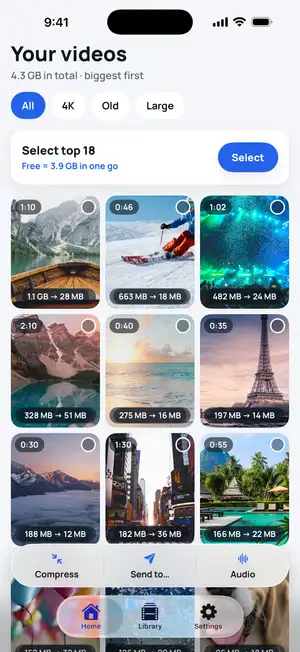
Step 1: Pick the video
Open Video Compressor — your newest videos come first, each with its expected size. Or tap Send to… in the bottom bar to pick it straight from Photos.
Fig. 1 — Pick the video
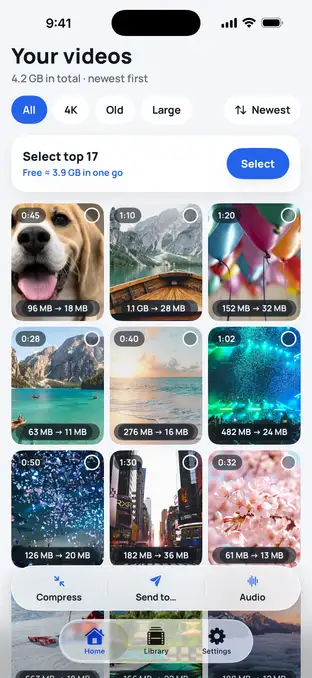
Fig. 1 — Pick the video
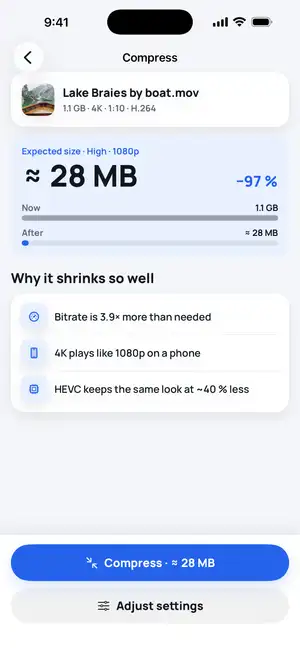
Step 2: Choose the size
Keep a quality level — 720p is free, 1080p (full HD) is Premium — or tap Send to → iMessage, or set your own size in MB (Premium). The app shows the expected size before compressing.
Fig. 2 — Expected size first
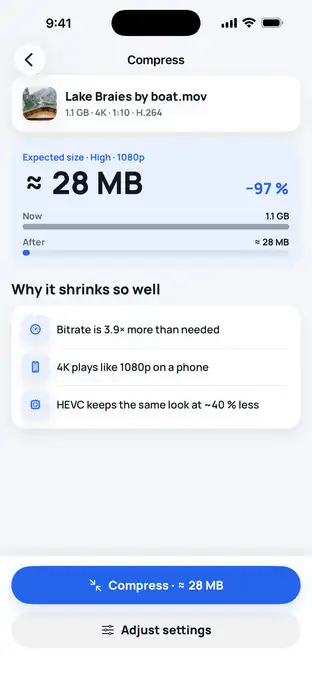
Fig. 2 — Expected size first
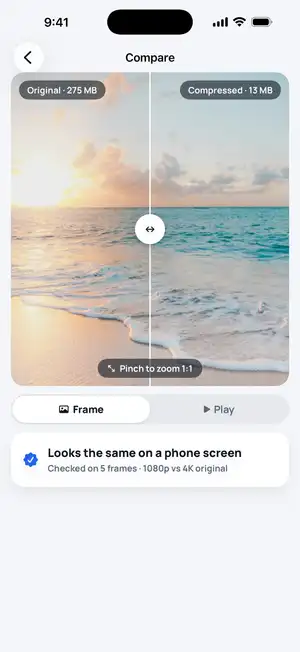
Step 3: Compare, then share to Messages
Drag the Compare slider or pinch to zoom 1:1 to check the copy against the original. Then tap Share → Messages. You can remove the location before sharing.
Fig. 3 — Check it, then send
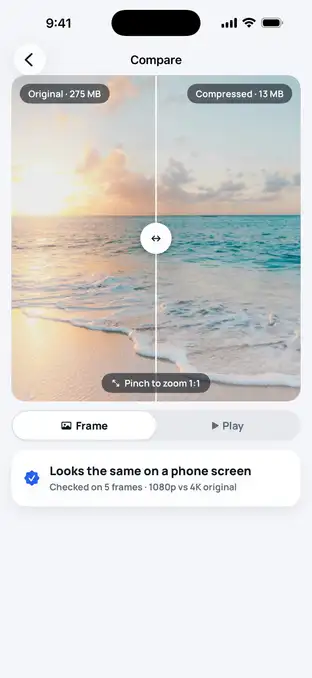
Fig. 3 — Check it, then send
Typical numbers
These are typical values, not a test: how big a one-minute 4K clip is as it is, and how small a sharp phone-ready copy can be.
| One-minute 4K 30 fps clip | Size | In Messages |
|---|---|---|
| Original | ≈ 170 MB | May be sent smaller — no published limit |
| iCloud link or AirDrop | ≈ 170 MB | Full quality, outside the chat |
| 1080p HEVC copy | ≈ 34–44 MB | Full HD, about 4–5× smaller |
| 720p H.264 copy | ≈ 23–34 MB | Sharp on a phone; free in Video Compressor |
Sources: Apple — Take and edit photos or videos in Messages; Apple — Share long videos on iPhone; Apple — Share photos and videos with an iCloud Link; Apple — Create or open ZIP files; Apple — HLS Authoring Specification (1080p HEVC 4.5–5.8 Mbps, 720p H.264 3–4.5 Mbps); iPhone per-minute estimate reproduced by Gadget Hacks.
Will 1080p or 720p really look the same? See does compressing a video reduce quality?
Troubleshooting
No Copy iCloud Link?
It only appears with iCloud Photos turned on (Settings → [your name] → iCloud → Photos). Otherwise save the video to iCloud Drive in Files and share a link from there.
Still blurry on Android?
Green-bubble messages go by SMS/MMS or RCS with carrier limits. An iCloud link works on any phone.
Stuck on «Downloading»?
With Optimize iPhone Storage on, the full video comes from iCloud first. Stay on Wi-Fi until it's on the iPhone.
Not delivered?
A very long video may simply be too large for Messages. Trim it in Photos, send a smaller copy or share a link.
FAQ
What is the iMessage video size limit?
Apple doesn't publish one. Its documentation only says that iPhone may compress photo and video attachments when necessary, and that some long videos are too large to send in a standard text message. For SMS, MMS and RCS, your carrier sets the limit.
Why is a video sent to an Android phone so blurry?
Messages to Android go as SMS/MMS or RCS, not iMessage, and carriers set their own size limits — MMS limits are small. Send an iCloud link instead; it opens in any browser.
Does Low Quality Image Mode affect videos?
On recent iOS versions it has been replaced by Send Low Quality Photo Previews (Settings → Apps → Messages). Apple describes it for photos — a quick preview first, then the full image — and with Low Data Mode on, only the preview is sent.
Does an iCloud link keep the original quality?
Yes. It shares the full-quality video from iCloud Photos as a link that anyone can open for 30 days, on any device.